
Before Greyd.Hub
A plugin update breaks a page, and there was no staging site to catch it first, just the live site and hope. Add to that: no one remembers which version this site is running, who has admin access, or when it was last backed up. Multiply that across dozens of installations on different hosts, and keeping track of what’s actually out there becomes a project of its own.
Why Teams Use Greyd.Hub
Every Site Ready for What Comes Next
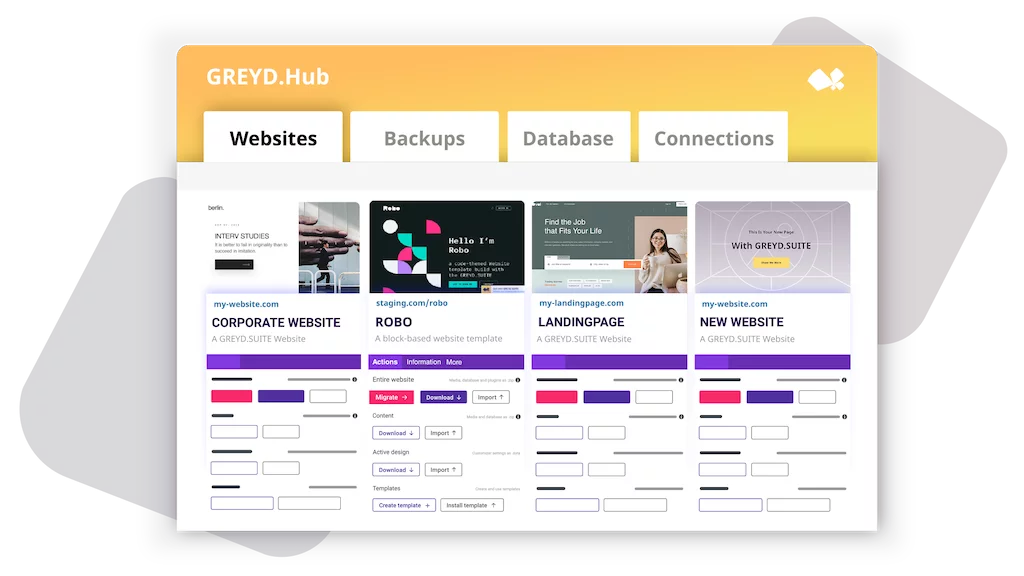
Greyd.Hub brings backups, staging, migrations, and site details together in one dashboard, even across separate installations.

See Every Site in One Place
A single dashboard shows every connected site, even across separate installations and hosts, with its version and admin details visible in one place instead of a dozen different logins.

Test Before It Goes Live
Pair any site with a staging version, make changes there first, then push everything to production with one click.

One-Click Backups, as Granular as You Need
Every connected site's backups live in one central place. One click captures the whole installation, a single site, or just its design settings, content, or plugins, whichever you need to restore.

Move and Launch Sites in Clicks, Not Scripts
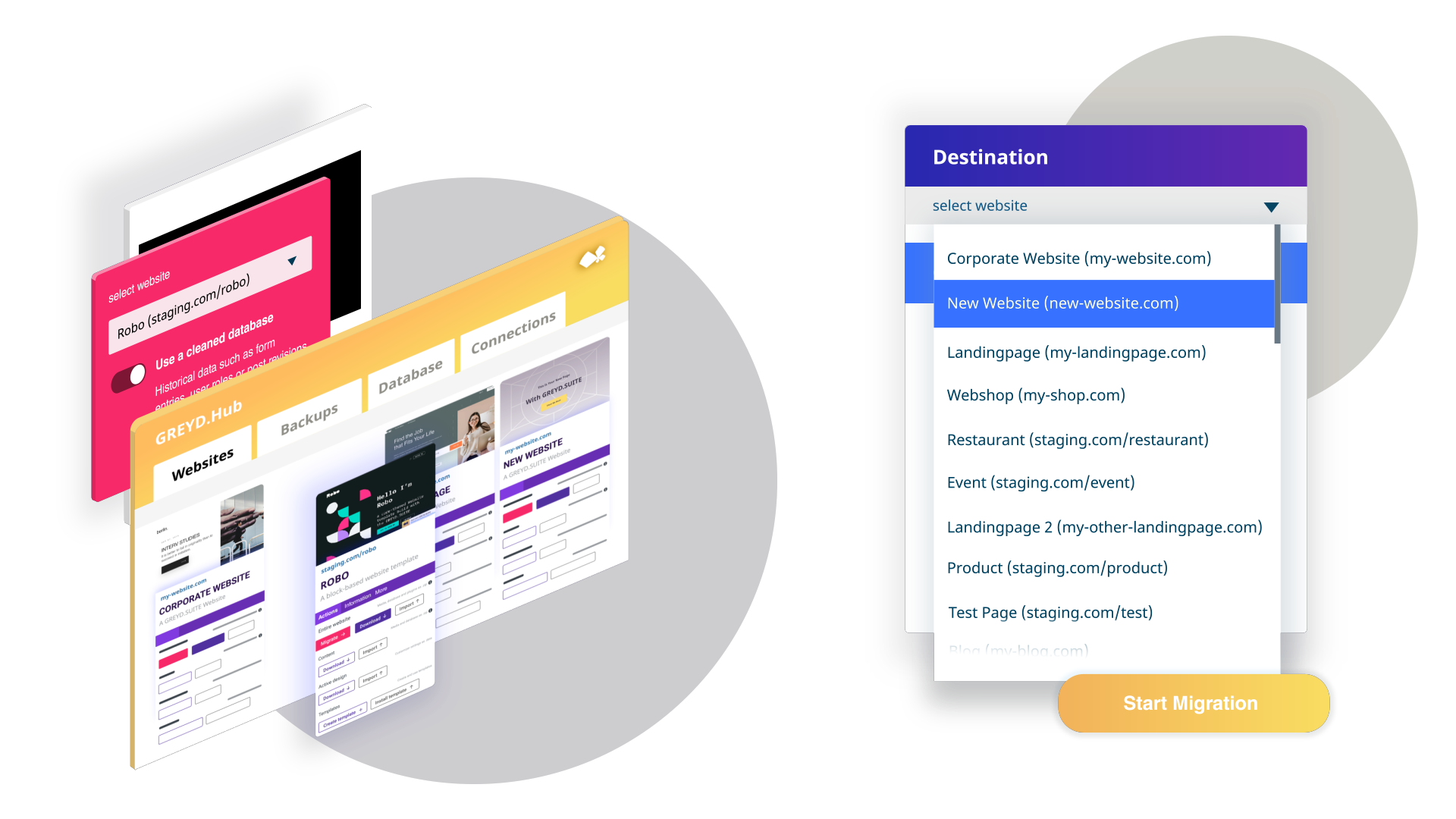
Migrate a site to a new domain in under a minute, no manual SQL, and launch a new site from a blueprint in a few clicks.

Built Into the Platform You Already Use
Backups, migrations, and staging are already part of Greyd.Suite, the same platform you use to build sites, manage forms, run popups, and sync content across them, so there's no extra tool or vendor to add.
How Greyd.Hub Works
From Site Connection to One-Click Migration in Four Steps
Step 1
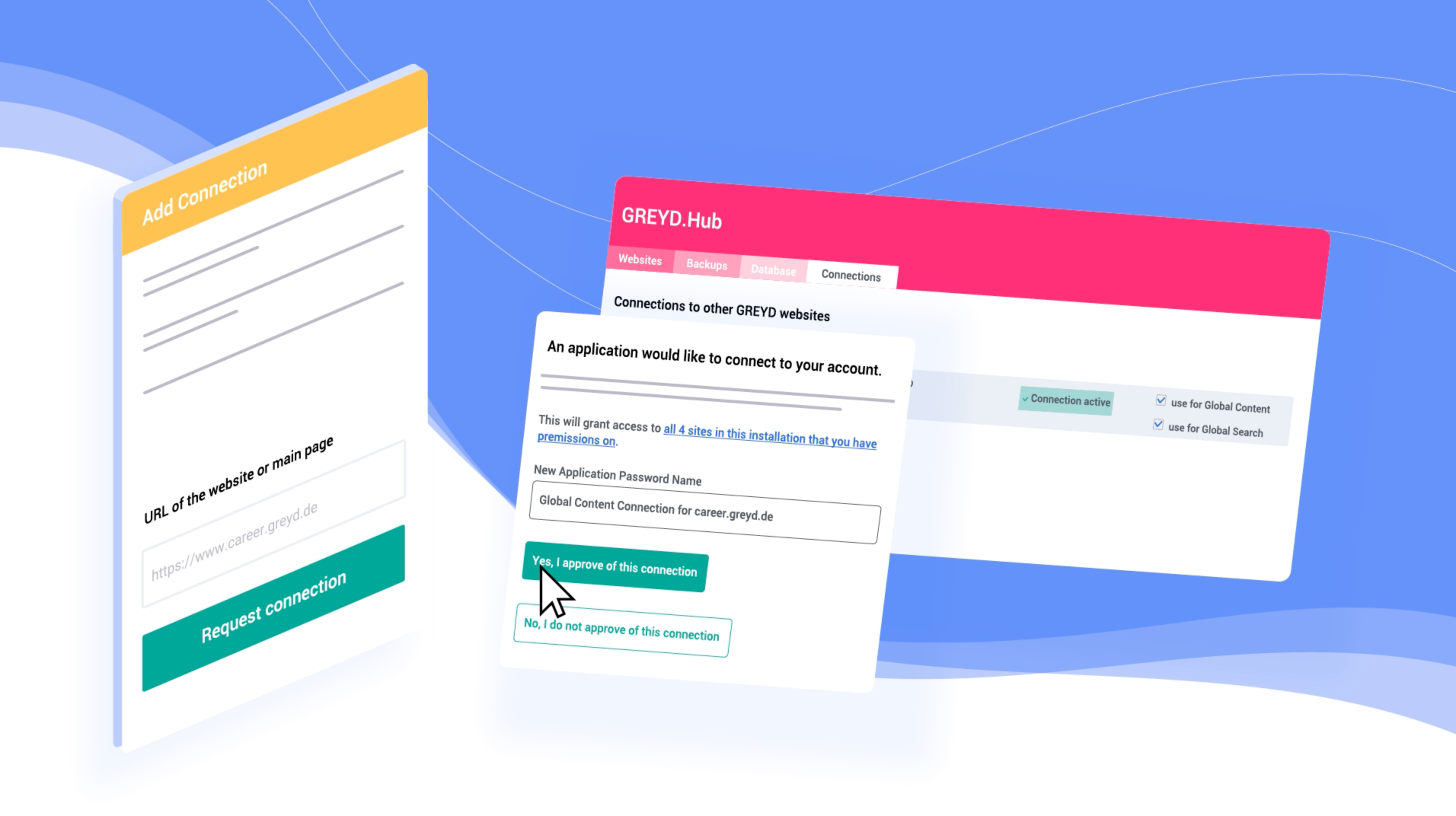
Every Site Shows Up, Automatically or Connected
Every site in your WordPress multisite appears in the Hub automatically. To bring in a site from a separate installation, even one hosted on a different server, connect it with the Site Connector.
Step 2
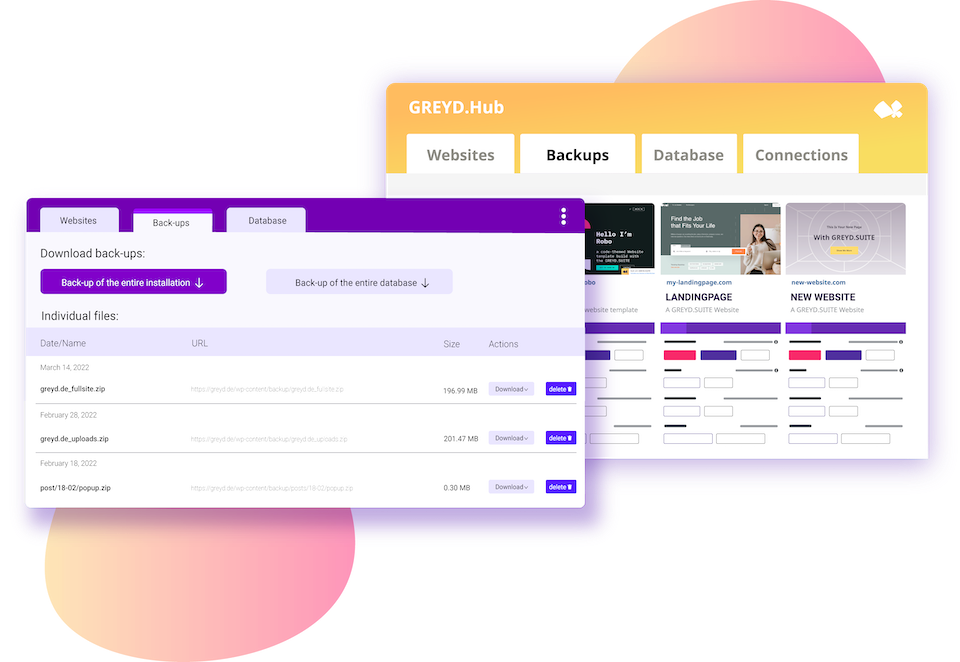
Back Up and Keep Track From One Place
Run backups and see which sites you have, which version each one is on, and who administers it, all without logging into each one separately.
Step 3
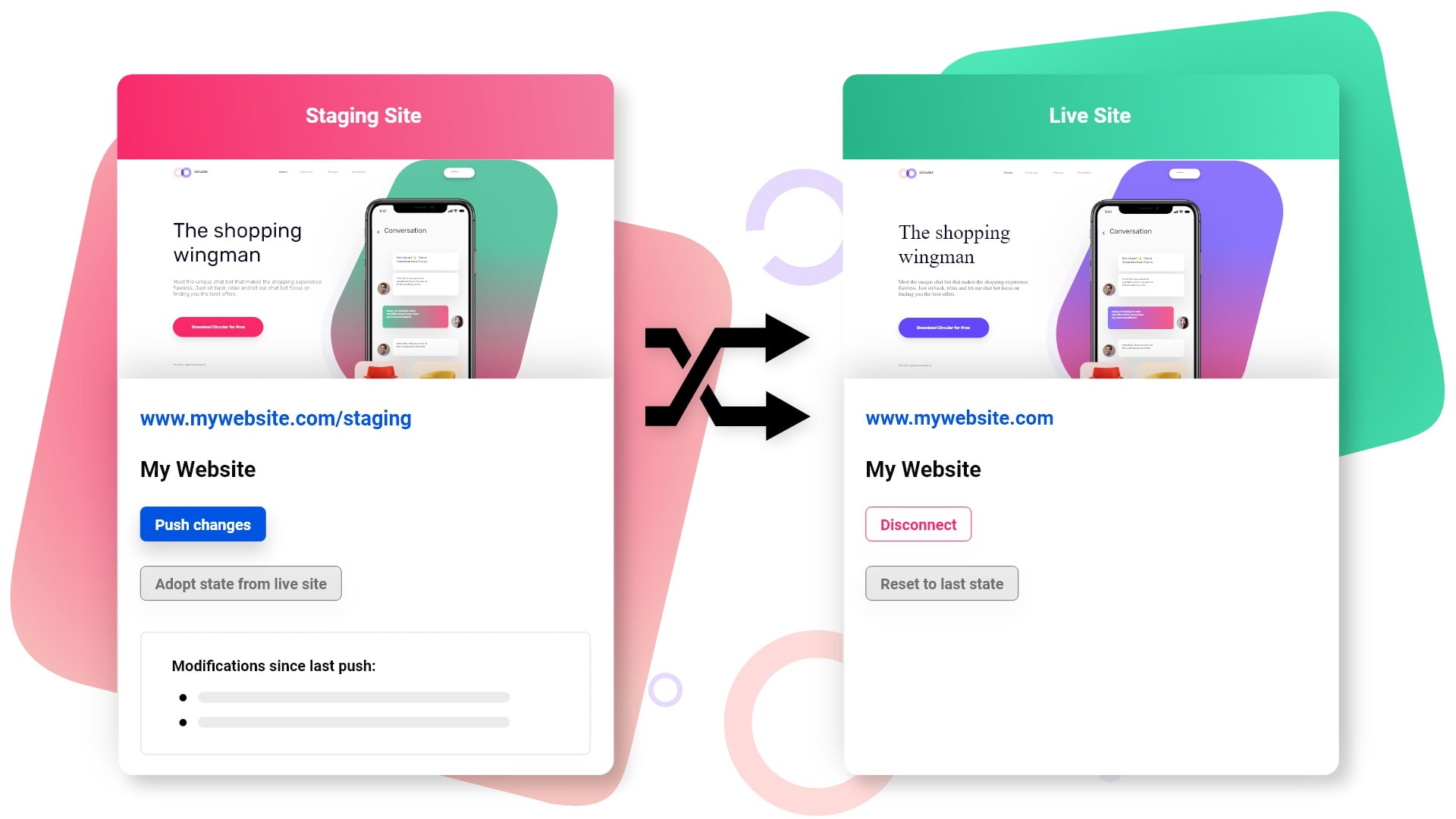
Stage the Change, Then Push It Live
Pair a site with a staging version, make and test the change there, then deploy it to the live site once it's proven itself.
Step 4
Move a Site to Its Live Domain in One Click
Launching something new? Use the Migration Assistant to move a site to its final domain, no manual SQL scripts, in under a minute.
Built for the Way Multi-Site Teams Actually Work

Corporate
Perfect for IT Teams and CTOs Who…
Need one view across every site regardless of host
Want a tested staging step before anything reaches production
Need a backup to restore fast if a deployment goes wrong


Technical Details
What’s In It?
Site Connector
Manage installations hosted anywhere, hosting-agnostic, not limited to one multisite network. Learn More.
Backups
One-click backups for an entire installation, a single site, or just its design settings, content, or plugins; manage and access every backup file centrally.
Database Access
Direct access to database tables: upload, edit, export, and delete individual tables, intended for experienced users.
Staging
Pair any two sites into a staging relationship to test changes safely before deploying them to the live site.
Migrations
Move a site to a new domain without manual SQL scripts.
Testimonials
Built With Global Content

Centrally manages hundreds of sites and resolves errors from one place instead of logging into each one individually.

Greyd.Hub gives the head office the ability to centrally manage deployments, updates, and monitoring across all 250+ franchise sites.

Launches project sites in a few clicks via Greyd.Hub, always connected to a master system, contributing to 2.5x faster project launches without a drop in quality.


